Share links with students in one place they can always find
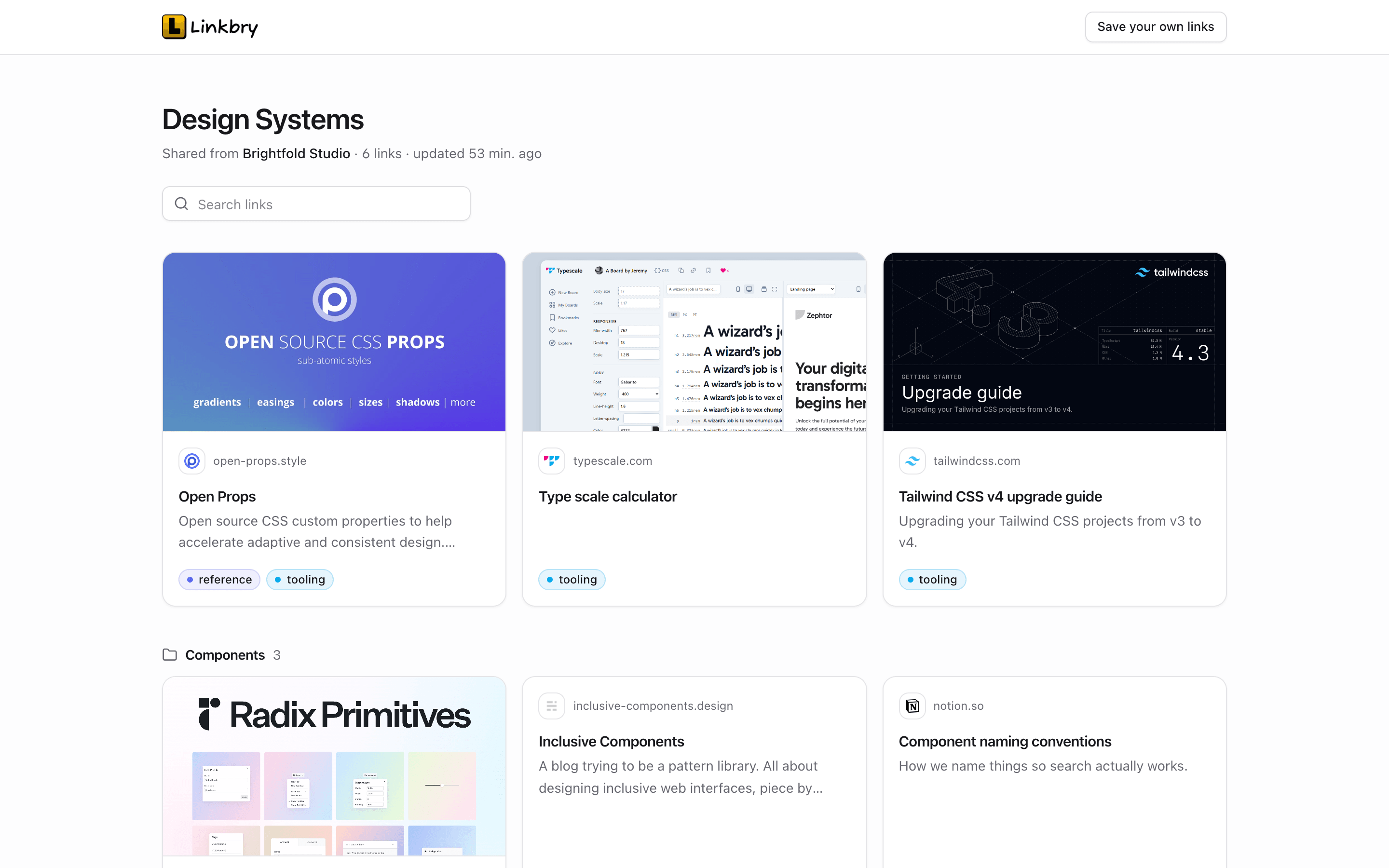
Teachers, lecturers, trainers and course creators share dozens of links a term: readings, videos, simulations, worksheets, tools and revision guides. Posted one at a time in an announcement or an email, they’re gone by week three. Linkbry lets you curate resources for students in folders and share each collection as a single, clean page — no student sign-up, always up to date.
Last updated
In short
Build a resource library for your classes in Linkbry — a folder per course, unit or cohort — and publish it as a read-only page students open without an account, with an optional password and end date. Embed it in Notion or any course page that accepts an iframe, let Linkbry flag dead links, and plan with colleagues in a shared workspace. One teacher can do all of this on the Free plan.
What educators use Linkbry for
A resource page per course or unit
Readings, videos, tools and practice sites, with a subfolder per week or topic. Students bookmark one page for the whole term, and every link you add appears on it.
A student resources page
The department or school’s “links for students”: library databases, learning platforms, writing and maths support, wellbeing services. One page staff can keep current, instead of a web page only one person can edit.
Reading lists and exam prep
Past papers, revision guides and practice tools, password-protected if you like and set to expire after the exam.
A shared department library
Colleagues pool resources in one workspace, tagged by level, topic and course. Co-teachers are editors; teaching assistants can be free viewers.
Workshop and training handouts
Trainers and course creators give attendees one link at the end of a session — slides, templates, further reading — and can see how many clicks each resource got.
Resources that don’t break mid-term
The background link checker flags videos and sites that have been taken down or moved, so you can fix the list before students hit a dead end.
Staff onboarding
A checklist folder for new teachers: timetables, policies, systems, planning templates. Each person ticks items off, and you can see who’s done what.
Letting students keep a copy
Students with a Linkbry account can save a copy of a shared folder into their own workspace with one click — without your notes.
Why links get lost over a term
Every channel teachers use for links is built for something else, so the links end up scattered across all of them.
- Course announcements scroll away as new ones are posted
- Links in emails and slides can’t be updated once sent
- Handouts with URLs have to be retyped
- The school website’s resources page is edited by one person, rarely
- Each teacher keeps their best resources in their own bookmarks
Curate resources for students — no student accounts
Publish any folder, subfolders included, as a read-only page. Students open it from any browser without signing up, and the page has its own search box. Give it a title and description (“Year 10 Chemistry — Unit 3”), add a password or an expiry date if you need to, and turn it off whenever you like. Notes, archived links and private links are never shown, so your own notes on each resource stay yours. A page shows up to 1,000 links.
Put the list where students already are
Every shared folder has an embed code: paste it into any course page that accepts an iframe, or paste the embed URL into a Notion page with Notion’s Embed block. The embedded list updates when the folder does. If your platform doesn’t allow embeds, post the page’s link once and pin it.
Build the library with colleagues
A shared workspace gives a department one library instead of one per teacher. Tag resources by level, topic and course; import the bookmarks you already have from Chrome, Firefox, Safari, Edge, Brave or Arc with their folders intact; and use the activity feed to see what colleagues have added.
Padlet, Wakelet, Symbaloo — or Linkbry?
They do different jobs. Padlet is a collaborative wall where students post; Wakelet builds visual collections that students can contribute to; Symbaloo arranges links as tiles on a start page. Linkbry is for teacher-curated libraries: nested folders, notes, search, automatic link checking and a clean page to share. Students read it; they don’t post to it.
A note on student privacy
Shared pages don’t require students to sign in, and share stats count page views and clicks per link without recording who the visitor was. As with any tool, check your school’s policy before using it with students.
What it costs
A teacher working alone can use the Free plan: 100 links, shared pages, passwords and expiry dates included. To plan with colleagues in one workspace, Pro is $10 a month per owner or editor, and viewers are free.
A starter library for a teacher or department
| Folder | What goes in it | Who sees it |
|---|---|---|
| Course / Unit 1 | Readings, videos and practice, a subfolder per week | Students, via a shared page |
| Course / Exam prep | Past papers, revision guides, practice tools | Students, via a password-protected page that expires after the exam |
| Department library | Resources tagged by level, topic and course | Teachers in the workspace |
| Student help | Library databases, writing and maths support, wellbeing services | The whole school, via a shared page |
| Teacher tools | Planning templates, gradebook, systems and policies | Just you, or colleagues |
Frequently asked questions
Put them in a Linkbry folder and share the folder: students get one link to a page with all of them, grouped by subfolder and searchable. Add a link to the folder later and it appears on the page automatically.
No. Anyone with the link — and the password, if you set one — can open a shared page. Students only need an account if they want to save a copy of the folder into their own library.
Yes, if the page accepts an iframe embed: copy the embed code from the share dialog. In Notion, paste the embed URL into an Embed block. Otherwise, post the page’s link.
The Free plan covers one person with up to 100 links, including shared pages with passwords and expiry dates. Working with colleagues in one workspace needs Pro, at $10 a month per editor.
For teacher-curated resource lists, yes: folders, search, notes and link checking, shared as one page. If you want students to post to a board together, Padlet or Wakelet fit that better.
Not to a shared page — it’s read-only. People you invite into a Pro workspace as editors can add links.
Start organizing your links today
Free forever for one person. No credit card needed.