Industries

The portals and references your practice runs on, in one place

Linkbry keeps your practice’s tax, payroll and client portals in one shared library with a folder per client, so everyone, including busy-season temps, finds them without asking.

In short

Use Linkbry as your practice’s shared library of links: government and tax portals, each client’s portals and software, deadline and rates references, and a folder per client, with roles so the library stays tidy. It stores links and notes, not passwords or client documents. Pro is $10 per owner or editor a month; staff and seasonal temps who only need to read join free as viewers.

What it’s for

What accounting and bookkeeping firms use Linkbry for

Week to week

How it works in practice

  1. 01

    Monday: what needs attention

    The practice manager checks the Broken filter and the links due for review, such as a portal that moved or a rates page for last year, and fixes or confirms them.

  2. 02

    Client work: open the client’s folder

    Before a call or a month-end close, open the client’s folder for their books, bank portal and payroll provider instead of searching old emails.

  3. 03

    Save as you go

    When a new portal or a useful technical article turns up, save it in one click with the Chrome extension into the right client or topic folder. Linkbry warns you if it’s already saved.

  4. 04

    Answer “where do I…?” with a link

    When a client emails asking where to upload their documents, type ;; in your webmail to insert the link to your document portal, or to their read-only resources page.

  5. 05

    Onboard the next temp

    Invite a new starter as a viewer; they work through the onboarding checklist folder, and owners and editors see how far they’ve got.

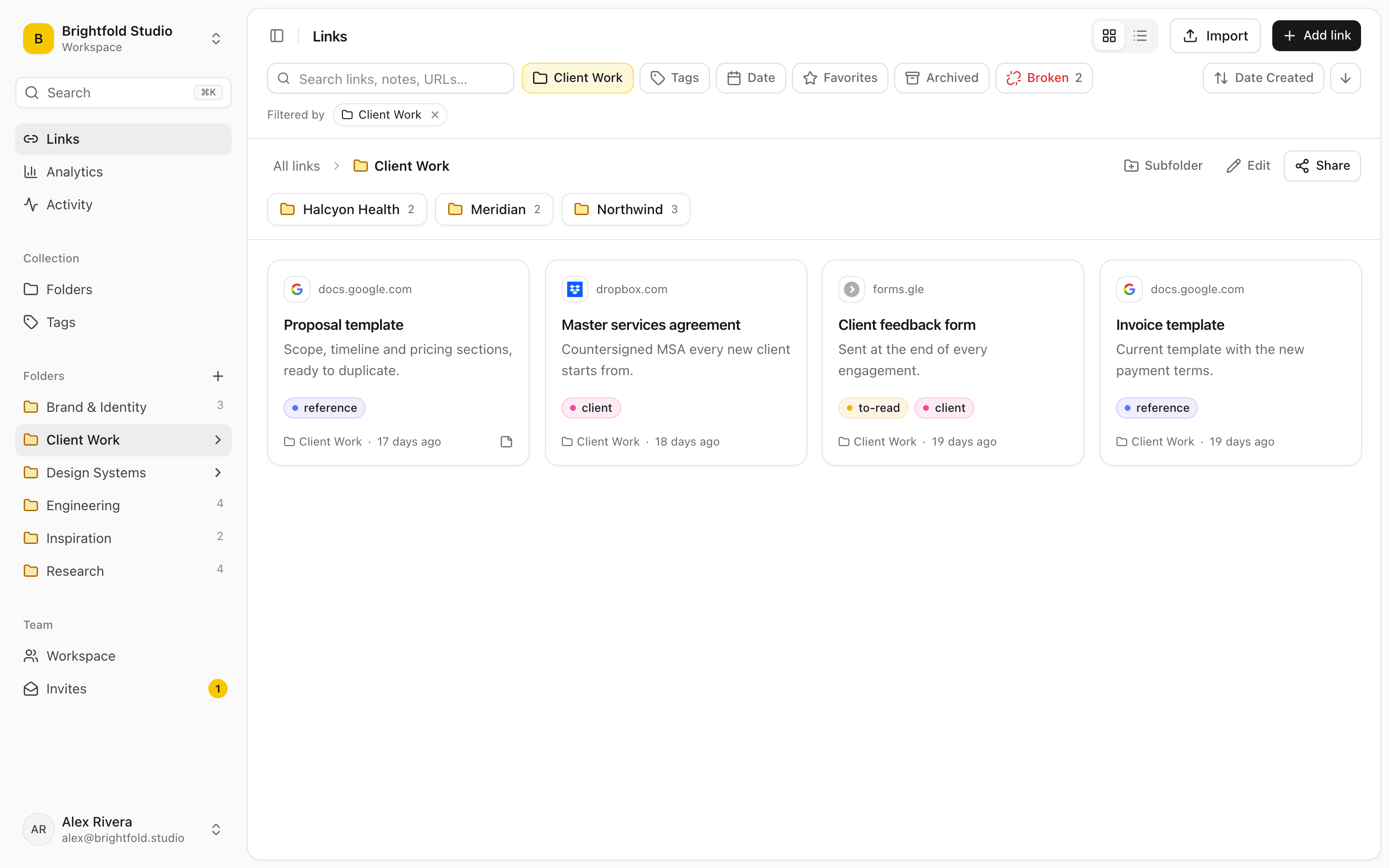
A Linkbry folder with a subfolder per client and saved links with descriptions, tags and save dates.
01

Where a practice’s links live today, and why it breaks

Most practices keep their links wherever they happened to land. It works until someone is off sick in the busy season and nobody else knows where their client’s payroll portal is.

  • Tax portal addresses in each person’s browser bookmarks, different on every machine
  • A client’s software links in an onboarding email from three years ago
  • A “useful links” spreadsheet that nobody owns
  • Rates pages bookmarked for a tax year that has already ended
  • Temps asking the same “where do I log in for…?” question every busy season
02

Links and notes, not passwords or client files

Linkbry holds a link, a title, a description and a note. That’s the right place for “use the firm’s agent login, not the client’s”, and the wrong place for the password itself, bank details or tax reference numbers. Keep credentials in a password manager and client documents in your document portal or practice software; Linkbry points to them. Any link can be private to the person who saved it, and owners can restrict a client’s folder to the people who work on that client.

  • Store where to go and why, not how to log in
  • Keep client documents in your document portal; save the link to it
  • Private links for your own working links
  • Restricted folders for clients only some staff should see
03

Roles for partners, staff and seasonal help

Owners run the workspace: members, billing, restricted folders and deleting. Editors (the managers and seniors who keep the library tidy) add, edit, organise and delete links and organise folders, but only owners delete folders. Viewers can search and open everything they have access to and are free on Pro, which suits temps and juniors who need the links but shouldn’t be reorganising them. Every change shows in the activity feed.

  • Owner: members, billing, restricted folders, deleting folders and tags
  • Editor: adds, organises and deletes links, publishes shared pages
  • Viewer: reads, searches and exports; free and unlimited on Pro
  • Invite by email, or with an invite link that has a role, an expiry and a use cap
04

Sharing links with clients

Many client questions are really “where do I…?” questions: where to upload documents, pay a tax bill or sign the engagement letter. Put those links in a client-facing folder and publish it as a read-only page the client opens without an account; add your logo and colour, a password and an expiry date if you like, and turn it off at any time. Notes, archived links and private links never show. A shared page can be opened by anyone with its address (and password, if set), so keep client names and figures out of the titles and descriptions you publish.

  • One page per client, or one “how to work with us” page for everyone
  • Share stats show page views and clicks per link, without identifying visitors
  • Embed the list in another page, such as a Notion page, so it updates there too
05

Keeping portals and rates pages current

Tax authorities and software vendors move pages often. The background checker re-tests each link at most weekly and flags links that return an error or redirect to another domain; portals behind a sign-in often send you to a login page instead, so a flag is a prompt to check rather than a verdict. For rates and thresholds pages, set an owner and a yearly review interval: they show as due for review until someone confirms they’re still right, and editors can re-check a link on demand.

06

Pricing for an accounting practice

Free is for one person with up to 100 links, enough for a sole practitioner’s core portals and a few client pages. Pro is $10 per owner or editor per month, or $100 a year, with no link limit, and viewers are free and unlimited. A worked example: a 12-person practice where two partners and the practice manager maintain the library pays for three seats ($30 a month, or $300 a year), while nine staff and four busy-season temps join as viewers at no cost. Anyone who needs to add links or publish client pages is an editor at $10 a month.

07

When Linkbry isn’t the right fit

Linkbry isn’t practice management, a client document portal, a password manager or a deadline tracker: it has no filing calendar, no reminders tied to due dates, no e-signature and no secure document exchange. Keep those tools and link to them. There are no native mobile apps, and it keeps the readable text of web pages for search rather than archived copies. PDFs you link to aren’t searched by their contents. Linkbry makes no claims about regulatory or data-protection compliance; your firm decides what belongs in a third-party tool.

A starting point

A starter workspace for an accounting practice

Restrict client folders that only some staff should see, and keep client-facing pages in their own folder, since every subfolder of a shared folder is published with it.

FolderWhat goes in itWho sees it
Start herePractice handbook, tool stack, who to ask, new-starter checklistEveryone; Editors maintain
Portals / Government & taxTax authority agent services, company registry, payroll and pension portalsEveryone; Editors maintain
Portals / SoftwarePractice management, bookkeeping apps, document portal, e-signature, help centresEveryone; Editors maintain
Reference / Rates & deadlinesOfficial rates, thresholds and filing-deadline pages, each with a yearly reviewEveryone reads; one Editor owns the reviews
Clients / Ashdown Bakery LtdTheir Xero file, bank portal, payroll provider, shared folder, engagement letterThe client team (restricted folder, set by an Owner)
Client pages / How to work with usDocument upload portal, payment page, e-signature, frequently asked questionsShared page for all clients
Your own working linksArticles to read, research in progressPrivate, visible only to you
FAQ

Questions accounting and bookkeeping firms ask.

How much does Linkbry cost for an accounting firm?

$10 per owner or editor per month, or $100 a year. Viewers are free and unlimited on Pro, so staff who only need to find links cost nothing. Free is for one person with up to 100 links.

Should we store client logins in Linkbry?

No. Save the link to the portal and a note about which account applies; keep passwords in a password manager. Linkbry stores links, titles, descriptions and notes, and isn’t designed to hold credentials or client documents.

What’s the difference between an editor and a viewer?

Editors add, edit, organise and delete links, add and edit folders and tags, and publish shared pages. Viewers can browse, search, open and export the links they can see, and can’t change anything. Owners can do everything, including members, billing and deleting folders and tags.

Can seasonal staff use it for free?

Yes, as viewers on Pro: they can search and open every link they have access to but can’t change anything. If a temp needs to save links or publish client pages, make them an editor at $10 a month, and remove them from the workspace when the season ends.

Can we import the bookmarks we already have?

Yes. Owners and editors can import a bookmarks HTML file from Chrome, Firefox, Safari, Edge, Brave or Arc, or a CSV, so a “useful links” spreadsheet works too. Folders, tags and save dates are kept and duplicates are skipped.

Does the ;; picker work in our email?

If you use email in the browser, yes. With the Chrome extension, type ;; or press Ctrl/Cmd+Shift+K in a message to search your library and insert a link. It works in text boxes in the browser, not in desktop apps.

Can we give clients a page of links?

Yes. Publish a folder as a read-only page that opens without an account, with an optional password, expiry date, title and logo. Notes, archived links and private links never show, and you can turn the page off at any time.

Give accounting and bookkeeping firms one place for every link

Free for one person, with your bookmarks imported in a minute.

Link Management for Accounting Firms: Portals, Clients & Rates | Linkbry