How to create a bookmark in Chrome
Saving a page in Chrome takes one click or one keystroke, but picking a folder as you save is what makes the bookmark findable again in six months.
Quick answer
Click the star icon at the right end of the address bar, or press Ctrl+D (Cmd+D on Mac). Choose a folder in the panel that opens, then click Done.
- Open the page you want to save.
- Click the star icon at the right end of the address bar (or press Ctrl+D on Windows/Linux, Cmd+D on Mac).
- A small panel appears: edit the name if you want, and choose a folder from the dropdown.
- Click Done. The star fills in solid to confirm the page is saved.
- To edit later, click the same star icon again on that page, or find it in the Bookmark manager.
Creating a bookmark folder
Two ways, both on desktop. Right-click an empty spot on the bookmarks bar and choose “Add folder,” or open the Bookmark manager (Ctrl+Shift+O), click the three-dot menu at the top right and choose “Add new folder.” Name it and it's ready, then drag existing bookmarks into it from the manager.
Three ways to save a page
The star icon and Ctrl/Cmd+D do the same thing and cover most cases. A third option, dragging the address bar's URL icon straight onto the bookmarks bar, skips the folder picker entirely, which is convenient for one-off saves and a habit worth avoiding for anything you want to find again later.
- Star icon in the address bar: opens the save panel with a folder picker
- Ctrl+D / Cmd+D: same panel, no mouse required
- Drag the page icon to the bookmarks bar: fastest, but skips folder choice
On Android and iPhone
On Android, open the page, tap ⋮ and then the star icon at the top of the menu. On iPhone, tap ⋯ → Add to Bookmarks. Both save to Mobile bookmarks by default; tap “Edit” on the confirmation to pick a different folder.
Why the folder step is worth the extra second
Every bookmark saved straight to the bar without a folder becomes one more entry competing for the dozen or so slots before it overflows into a menu. Picking a folder at save time, even a rough one, is the difference between a library and a pile.
Saving without leaving the page you're reading
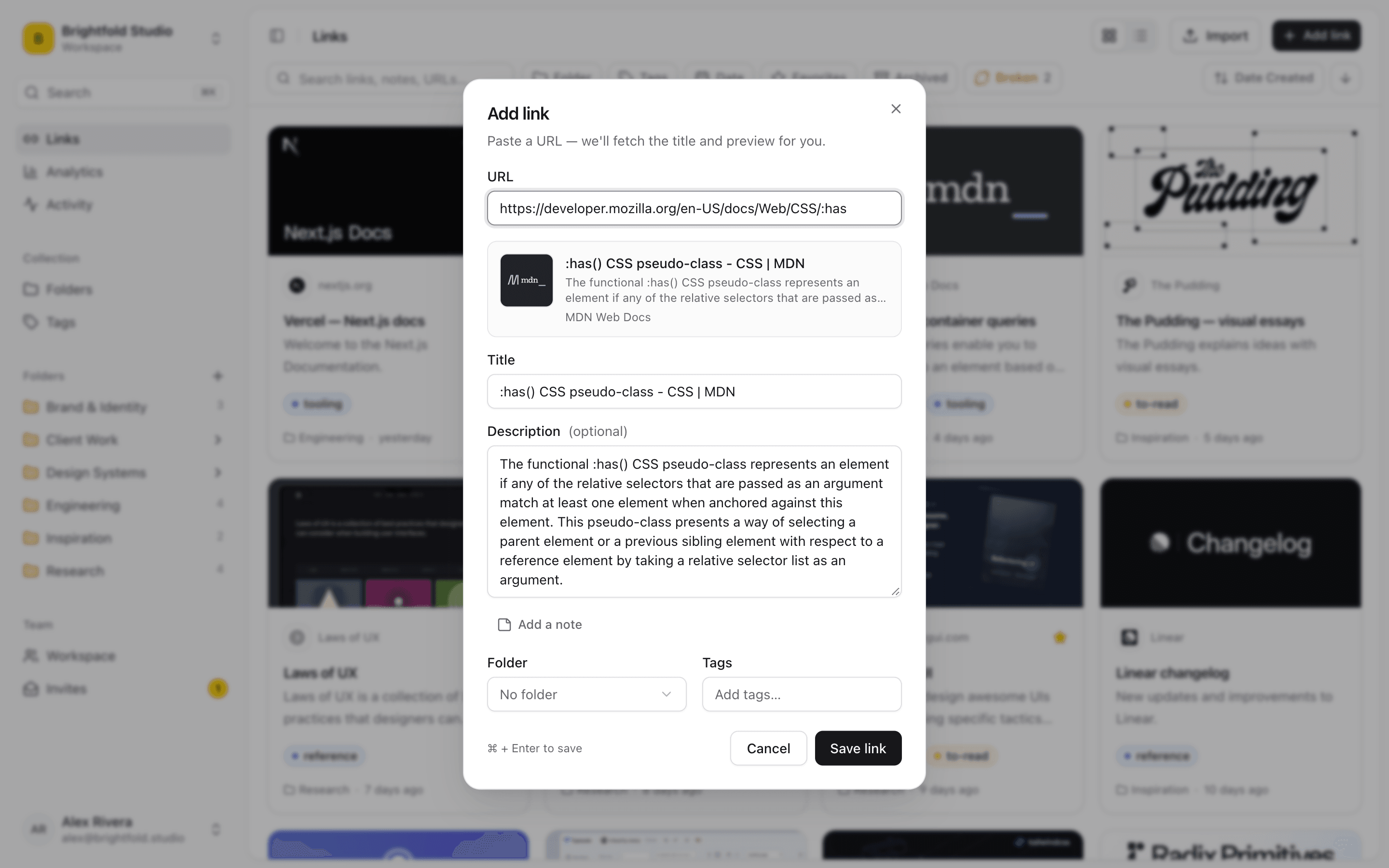
The Linkbry Chrome extension saves the current page to a shared team workspace in one click, capturing the title and favicon automatically, with folder and tags picked in the same popup. Right-click saves any link on a page without opening it.
Frequently asked questions
Ctrl+D on Windows, Linux and Chromebook, Cmd+D on Mac. It opens the same save panel as clicking the star icon in the address bar.
Right-click the bookmarks bar and choose “Add folder,” or open the Bookmark manager (Ctrl+Shift+O), click its three-dot menu, and choose “Add new folder.”
When the save panel opens (star icon or Ctrl/Cmd+D), use the folder dropdown before clicking Done. You can also move a bookmark to a different folder afterward from the Bookmark manager.
It saved to whatever folder was selected in the save panel, not necessarily the bar itself. Check the folder dropdown you picked, or find it via Ctrl+Shift+O and the search box.
Start organizing your links today
Free forever for one person, and no credit card needed.