Slack pinned messages: how to pin, find them, and when they stop working
Pinning is how most teams try to keep important links from scrolling away in Slack. It works for a handful of messages in one channel. It stops working the moment the team's important links outgrow a single channel — which, for most teams, is about month three.
Last updated
Quick answer
To pin a message, hover over it, click the three-dot “More actions” menu, then choose Organize → Pin to channel (or Pin to conversation in a DM). Pinned messages appear in the Pins tab at the top of that channel or DM, visible to everyone in it.
How to pin and unpin a message
On desktop, hover over the message, click the three-dot icon, then Organize → Pin to channel. To remove it, open the same menu on the pinned message and choose to un-pin it. On mobile, long-press the message to find the same option. Anyone in the channel can pin, and anyone in the channel can see what's pinned.
Where to find pinned messages
Open the channel or DM and look at the tabs along the top of the conversation — pinned messages live in the Pins tab. Newer versions of Slack also let you add links and canvases as tabs there, which is handy for a few always-needed links per channel.
Why pins fail as a team's link library
Pins are a per-channel highlight reel, not a library. The problems show up as soon as a team relies on them for anything important.
- They live in one channel — the staging URL pinned in #eng is invisible from #support
- There's no organization beyond the order things were pinned
- New hires have to know which channel to look in before pins can help them
- Links shared in messages disappear from search on Slack's free plan after 90 days of history
- There's no way to see which pinned links anyone actually uses
Pins, canvases, or a shared link library?
Use pins for the two or three things a single channel needs this week — the current sprint doc, the incident runbook. Use a canvas when a channel needs a written page with context. When the same links matter across channels — tools, dashboards, docs, client portals — they belong in one shared library the whole company can search, and Slack becomes the place you insert them, not store them.
How that works with Linkbry
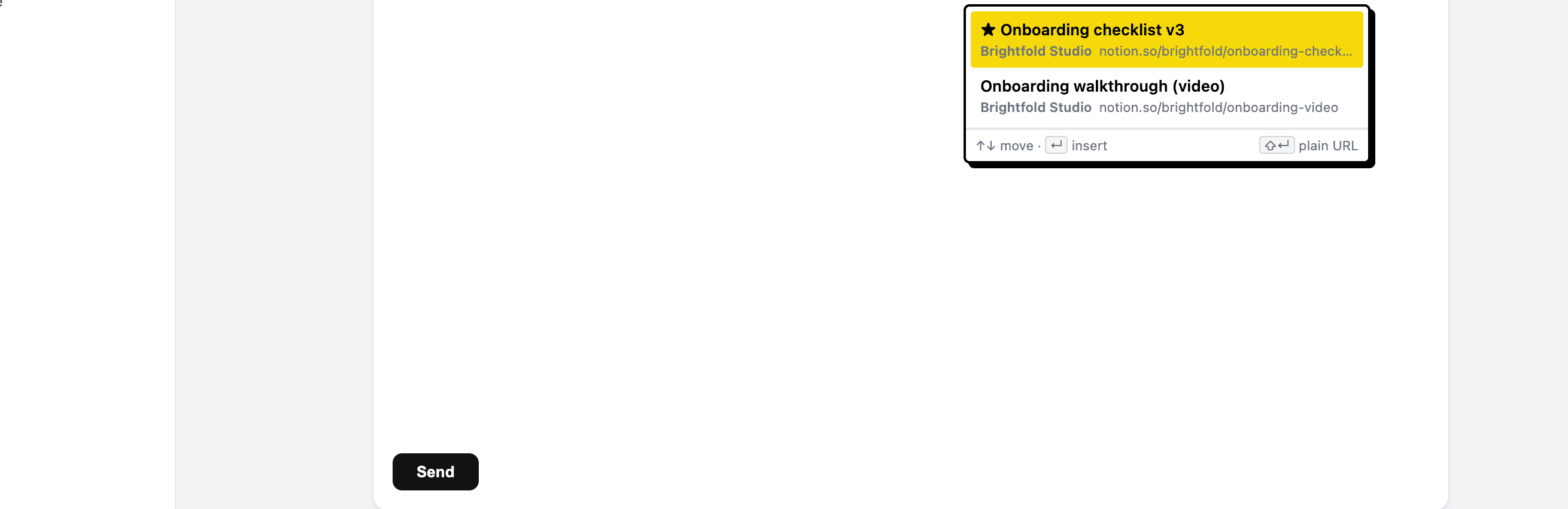
Linkbry is a shared link library for teams. Links live in one workspace, organized in nested folders and tags, with owner, editor and viewer roles (viewers are free) — and you can import the links you've already collected from your browser. The Chrome extension closes the loop with Slack: type ;; in the Slack message box in your browser, search the team's saved links at your cursor, and press Enter to insert one. The link never has to be pinned to be found again.
Frequently asked questions
Open the channel or DM and click the Pins tab at the top of the conversation. Pins are per conversation — there's no single view of every pin across your workspace.
Everyone who's a member of the channel or DM where the message is pinned.
Yes — long-press the message in the Slack app and choose the pin option from the menu that appears.
Pinning highlights a message for everyone in the channel. Saving (Save for later) adds it to your own private list — nobody else sees it.
Start organizing your links today
Free forever for one person. No credit card needed.